AINoter Documentation
Welcome to the official AINoter user guide. AINoter is a lightweight prompt manager for macOS that helps you store, organize, and instantly access your AI prompts from any application.
Whether you're working with ChatGPT, Claude, or other AI assistants, AINoter streamlines your workflow by keeping all your prompts one hotkey away. This documentation covers everything you need to get started and make the most of the app.
What you'll learn
Create a prompt
Folders
Folders help keep prompts organized.
Create a folder
Move and reorder (Drag & Drop)
Shortcuts
Prompt shortcut (global hotkey)
A shortcut lets you copy a prompt to the clipboard without switching windows.
Set a shortcut
Use a shortcut
Change or remove a shortcut
Quick Access Window
Quick Access Window is a fast popup for copying prompts, which you can open outside the app (from any window) using a hotkey.
How selection works
Mouse
Keyboard
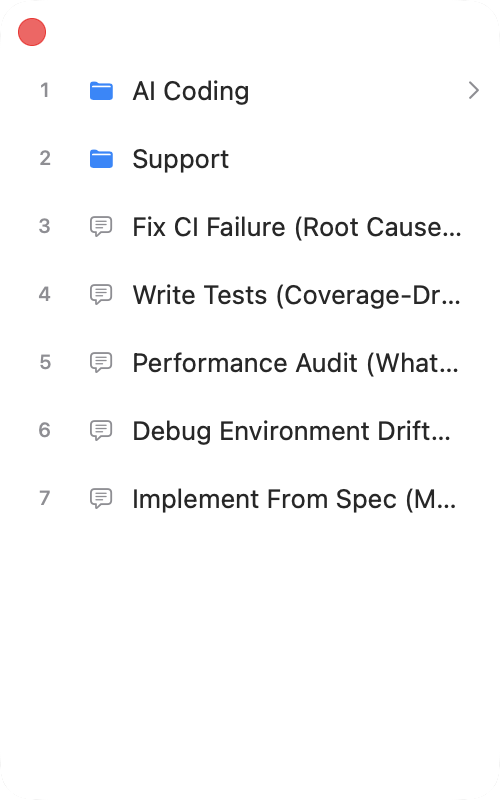
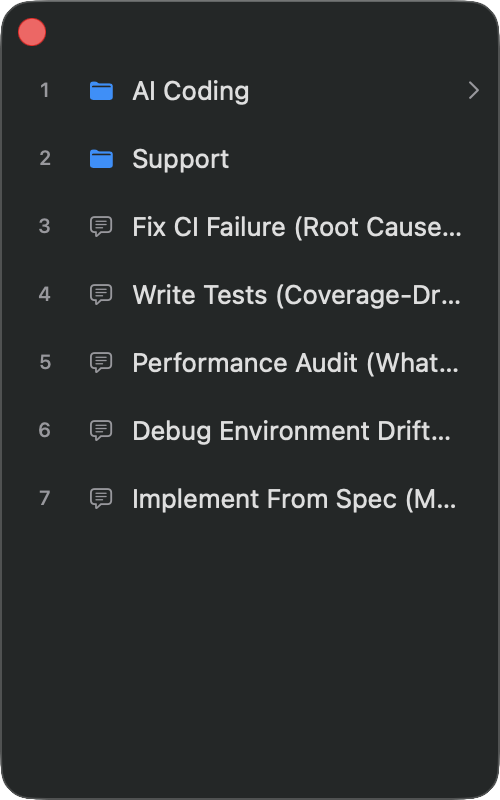
Order
Hotkey to open Quick Access Window
Backup
Backups are saved copies of your prompts and folders. They help you restore data if something was deleted or changed.
Location: Settings → Backups.
Auto-backup
Turn on Auto-backup — AINoter will create a fresh backup automatically every time you launch the app.
Create a backup manually
Click backup — a new backup appears in the list with its date and time.
Restore from a backup
Delete backups
Frequently Asked Questions
How do I set a shortcut for a prompt?
How do I create a folder?
How do I organize prompts?
How does Quick Access Window work?
How do I search prompts?
How do backups work?
Need More Help?
Contact us: support@bscoders.com